

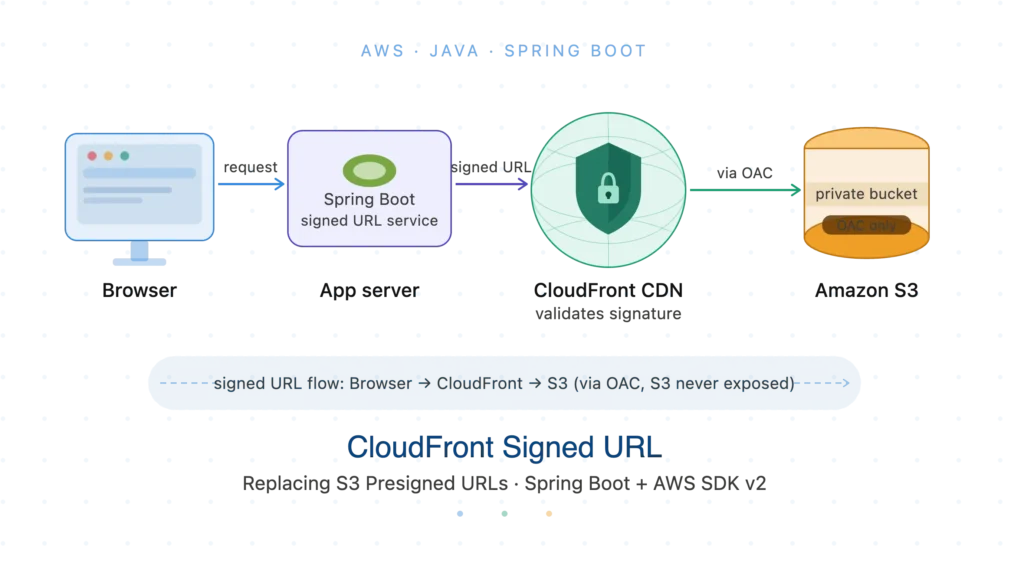
If you’re serving private files from Amazon S3, you’ve probably used S3 presigned URLs. They work but they expose your S3 bucket endpoint directly, bypass CloudFront’s CDN caching, and can’t be easily invalidated globally. CloudFront signed URLs solve all three problems.
In this guide, you’ll replace S3 presigned URLs with CloudFront signed URLs in a Spring Boot application. You’ll set up a CloudFront distribution from scratch, configure a trusted key group, and write the Java code to generate signed URLs all step by step.
Table of Contents
Prerequisites:
- AWS account with an existing S3 bucket,
- Java 17+,
- Spring Boot 3.x, and
- Basic familiarity with IAM and S3.
Why Use CloudFront Signed URLs Instead of S3 Presigned URLs?
Before jumping into code, understand what you’re gaining.
| Feature | S3 Presigned URL | CloudFront Signed URL |
|---|---|---|
| CDN caching | ❌ No | ✅ Yes |
| Hides S3 endpoint | ❌ No | ✅ Yes |
| Global invalidation | ❌ No | ✅ Yes |
| Custom domain | ❌ Hard | ✅ Easy |
| IP restriction | ❌ No | ✅ Via policy |
| Cost at scale | Higher S3 egress | Lower (CDN cache hits) |
With CloudFront signed URLs, your S3 bucket stays completely private no public access, no bucket policy exceptions. CloudFront acts as the only gateway, and it validates the signed URL before forwarding the request to S3.
Step 1: Block All Public Access on Your S3 Bucket
Your S3 bucket must be fully private. CloudFront will access it through an Origin Access Control (OAC) not through public URLs.
Go to your S3 bucket → Permissions tab → Block public access → Enable all four options → Save.
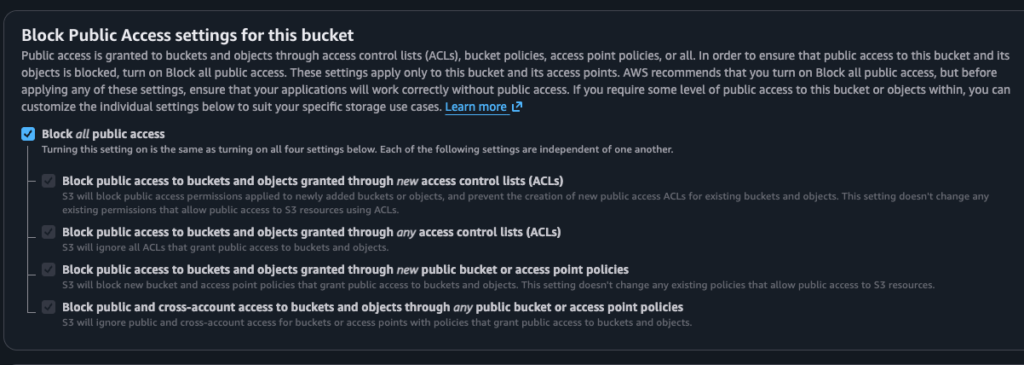
If it is not enabled already click Edit button and check Block all public Access
Step 2: Create a CloudFront Key Pair for Signing
CloudFront signed URLs require a RSA key pair. You generate the key pair yourself, upload the public key to CloudFront, and keep the private key in your application.
Generate the RSA Key Pair
Run these commands in your terminal:
# Generate a 2048-bit RSA private key
openssl genrsa -out cloudfromt-private-key.pem

# Extract the public key
openssl rsa -pubout -in cloudfromt-private-key.pem -out cloudfront-public-key.pem
Keep cloudfront-private-key.pem secret. Never commit it to version control.
Upload the Public Key to CloudFront
- Go to CloudFront → Key management → Public keys
- Click Create public key
- Name:
my-app-signing-key - Key value: Paste the contents of
cloudfront-public-key.pem - Click Create — note the Public key ID (e.g.,
K2JCJMDEHXQW5F)
Create a Key Group
- Go to CloudFront → Key management → Key groups
- Click Create key group
- Name:
my-app-key-group - Public keys: Select the key you just created
- Click Create key group — note the Key group ID
Step 3: Create a CloudFront Distribution
Open CloudFront and Create Distribution
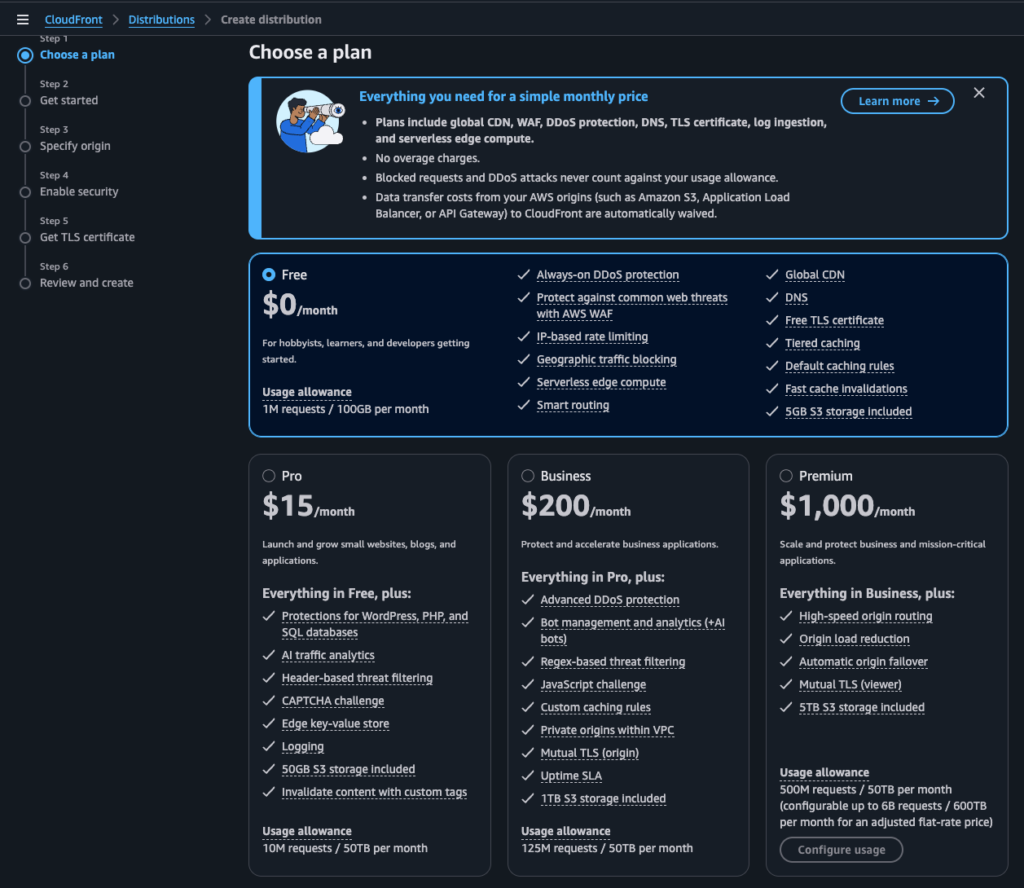
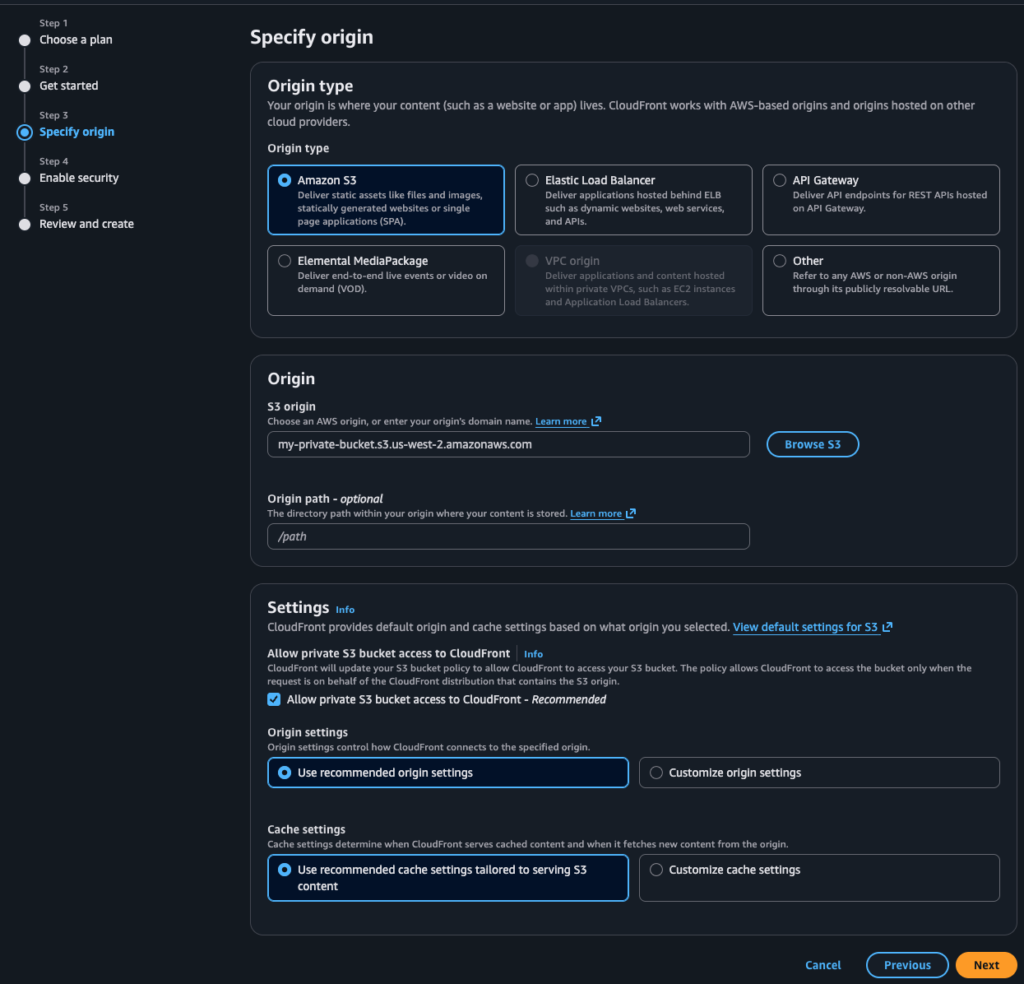
- Go to AWS Console → CloudFront → Create distribution -> You can select Free plan and click Next.
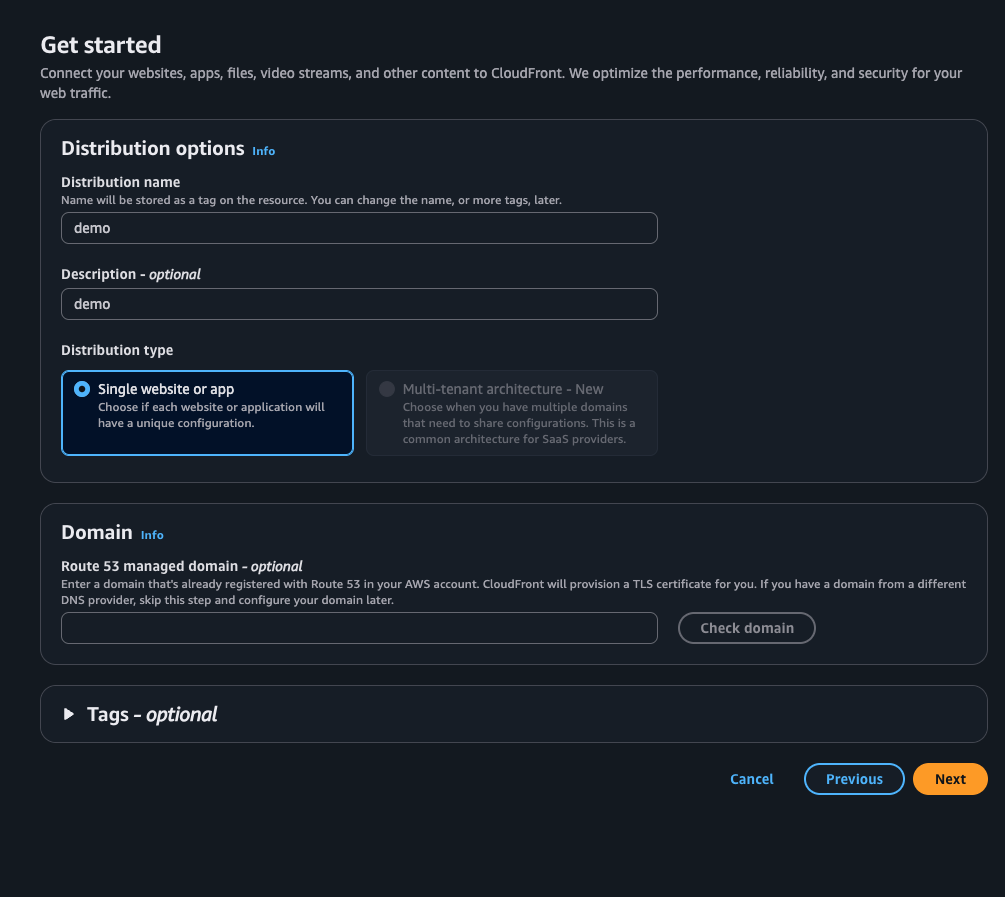
- Give Distribution name and if you want to use your custom domain you can provide that name as well anc click Next.
- Under Origin domain, select your S3 bucket from the dropdown (e.g.,
my-private-bucket.s3.amazonaws.com) - Under Origin access, select Origin access control settings (recommended)
- Click Next -> If you want you can enable Security but let’s leave it for now.
Configure Distribution Settings
- Click on the Behaviors tab of your distribution
- Select Behaviors and click Edit
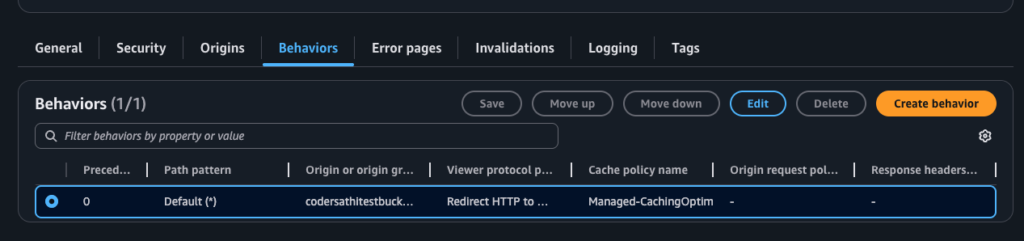
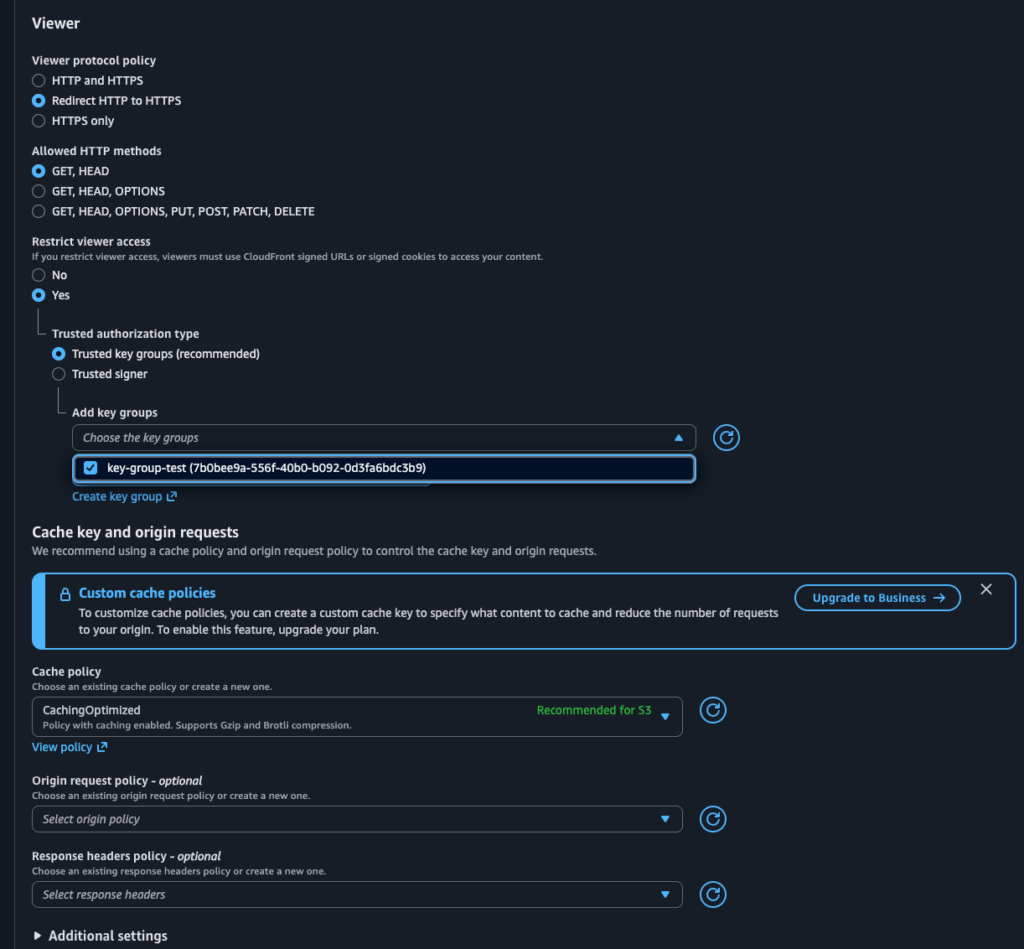
Now verify following:
- Viewer protocol policy: Redirect HTTP to HTTPS
- Allowed HTTP methods: GET, HEAD (for read-only file access)
- Cache policy: CachingOptimized (or create a custom one)
- Restrict viewer access: Yes — this enforces signed URLs
- Trusted authorization type: Trusted key groups (recommended over trusted signers)
- Select the Key group created in the Step 2 and Save.
CloudFront will take 5–10 minutes to deploy. Note your Distribution domain name (e.g., randomvalue.cloudfront.net).
Update the S3 Bucket Policy
After creating the distribution, CloudFront shows a banner: “Copy policy”. Click it, then:
- Go to your S3 bucket → Permissions → Bucket policy
- Paste the copied policy and save
The policy grants CloudFront’s OAC permission to s3:GetObject on your bucket. It looks like this:
{
  "Version": "2012-10-17",
  "Statement": [
    {
      "Sid": "AllowCloudFrontServicePrincipal",
      "Effect": "Allow",
      "Principal": {
        "Service": "cloudfront.amazonaws.com"
      },
      "Action": "s3:GetObject",
      "Resource": "arn:aws:s3:::my-private-bucket/*",
      "Condition": {
        "StringEquals": {
          "AWS:SourceArn": "arn:aws:cloudfront::123456789012:distribution/EDFDVBD6EXAMPLE"
        }
      }
    }
  ]
}
Replace my-private-bucket and the distribution ARN with your actual values.
Step 4: Store the Private Key Securely
Never hardcode your private key. Store it in AWS Secrets Manager or as an environment variable.
Option A: AWS Secrets Manager (Recommended)
How to Connect Spring Boot to AWS Secrets Manager Dynamically (Without Git Exposure)
- From the services list select Serects Manager
- Click Store a new secret button
- Select Other type of secret
- If you are storing multiple key/values under a single secret select Plaintext and create json object and store. This will be the easiest way to store. I prefer this.
- Click Next
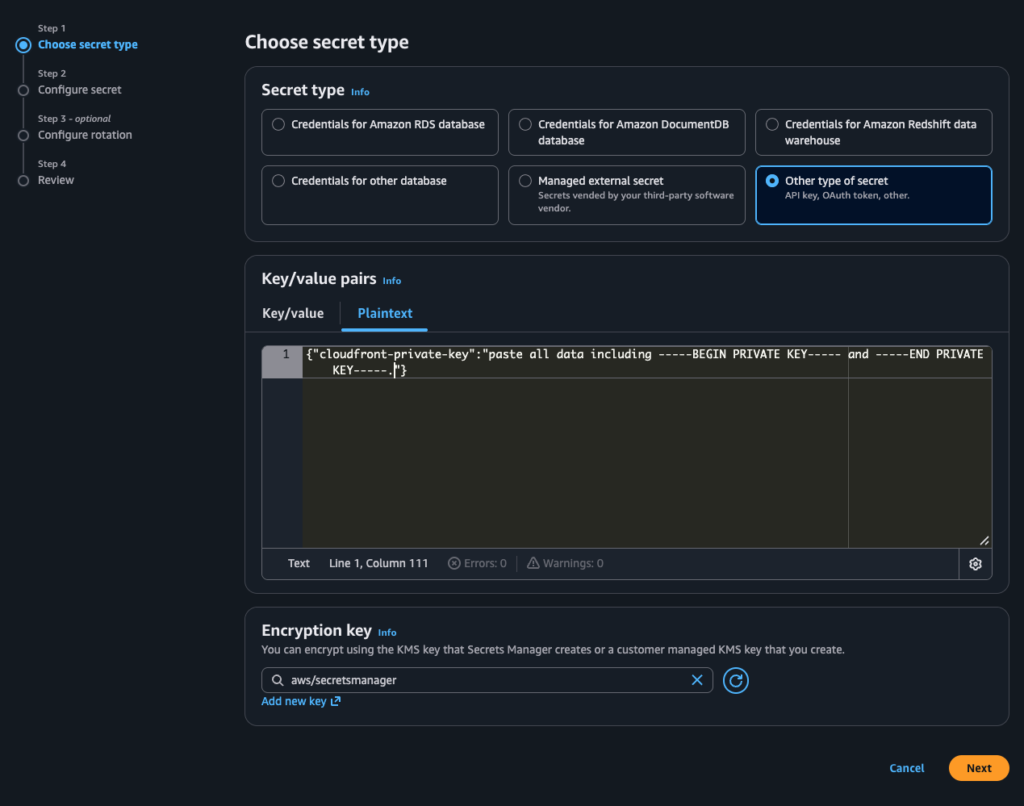
- Configure secret and give secret name it will required later to load from our code.
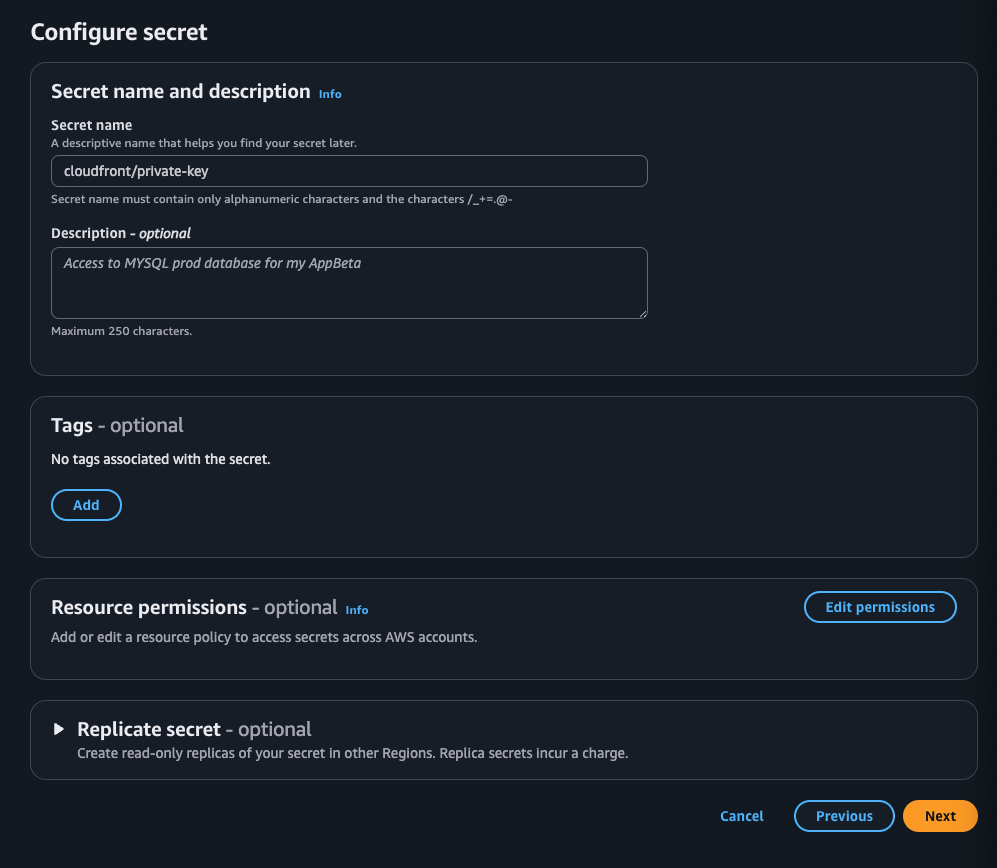
- Click Next and leave everything default and click Store.
Option B: Environment Variable (Dev/Test Only)
export CLOUDFRONT_PRIVATE_KEY="$(cat cloudfront-private-key.pem)"Step 5: Add Dependencies to Spring Boot
Add the AWS SDK CloudFront and also spring cloud starter dependency for AWS in your pom.xml.
<dependencyManagement>
        <dependencies>
            <dependency>
                <groupId>org.springframework.cloud</groupId>
                <artifactId>spring-cloud-dependencies</artifactId>
                <version>${spring-cloud.version}</version>
                <type>pom</type>
                <scope>import</scope>
            </dependency>
            <dependency>
                <groupId>io.awspring.cloud</groupId>
                <artifactId>spring-cloud-aws-dependencies</artifactId>
                <version>3.3.1</version>
                <type>pom</type>
                <scope>import</scope>
            </dependency>
        </dependencies>
    </dependencyManagement>


<dependencies>

        <dependency>
            <groupId>com.amazonaws</groupId>
            <artifactId>aws-java-sdk-cloudfront</artifactId>
            <version>1.12.787</version>
        </dependency>

        <dependency>
            <groupId>io.awspring.cloud</groupId>
            <artifactId>spring-cloud-aws-starter-secrets-manager</artifactId>
        </dependency>

    </dependencies>
Step 6: Configure Application Properties
Since we are using spring cloud aws starter it will be easier for us to read secrets. So add your CloudFront settings to application.yml:
spring:
  config:
    # Instructs Spring to pull the specific JSON payload block at startup.
    import: aws-secretsmanager:cloudfront/private-key # Secrets Manager secret name
  cloud:
    aws:
      region:
        # Explicitly designates which cloud data region contains the secret.
        static: us-west-2
      secretsmanager:
        enabled: true

cloudfront:
  distribution-domain: randomstring.cloudfront.net
  key-pair-id: K2JCJMDEHXQW5F          # Your Public Key ID from Step 2
  url-expiry-minutes: 60
Step 7: Write the Spring Boot Service
Service Implementation Class
import com.amazonaws.auth.PEM;
import com.amazonaws.services.cloudfront.CloudFrontUrlSigner;
import org.springframework.beans.factory.annotation.Value;
import org.springframework.stereotype.Service;
import org.springframework.util.StringUtils;
import org.springframework.web.util.UriComponentsBuilder;

import java.io.ByteArrayInputStream;
import java.io.IOException;
import java.nio.charset.StandardCharsets;
import java.security.PrivateKey;
import java.security.spec.InvalidKeySpecException;
import java.util.Date;

/**
 * Signed URL provider backed by CloudFront signed URLs.
 */
@Service
public class CloudFrontSignedUrlService {

	private final String privateKey;
	private final Long expiryMinutes;
	private final String publicKeyId;
	private final String domain;

	public CloudFrontSignedUrlService(
			@Value("${cloudfront-private-key}") String privateKey,
			@Value("${cloudfront.url-expiry-minutes}") Long expiryMinutes,
			@Value("${cloudfront.key-pair-id}") String publicKeyId,
			@Value("${cloudfront.distribution-domain}") String domain) {
		this.privateKey = privateKey;
		this.expiryMinutes=expiryMinutes;
		this.publicKeyId=publicKeyId;
		this.domain=domain;
	}

	/**
	 * You can call this method to get signed download url for the file.
	 */
	public String getSignedDownloadUrl(String s3FileKey) {
		validateConfiguration();

		Date expirationDateTime = new Date(
				System.currentTimeMillis() + (1000L * 60L * expiryMinutes));
		String resourceUrl = buildResourceUrl(s3FileKey);

		try {
			PrivateKey privateKey = loadPrivateKey();
			return CloudFrontUrlSigner.getSignedURLWithCannedPolicy(resourceUrl,
					publicKeyId, privateKey, expirationDateTime);
		}
		catch (InvalidKeySpecException | IOException exception) {
			throw new RuntimeException("Unable to generate CloudFront signed URL.", exception);
		}
	}

	private void validateConfiguration() {
		if (!StringUtils.hasText(domain)) {
			throw new IllegalStateException("CloudFront domain is required.");
		}
		if (!StringUtils.hasText(publicKeyId)) {
			throw new IllegalStateException("CloudFront public key id is required.");
		}
		if (!StringUtils.hasText(privateKey)) {
			throw new IllegalStateException("CloudFront private key is required.");
		}
	}


	private String buildResourceUrl(String key) {
		UriComponentsBuilder builder = UriComponentsBuilder.fromHttpUrl(
				trimTrailingSlash(domain));
		for (String pathSegment : key.split("/")) {
			if (StringUtils.hasText(pathSegment)) {
				builder.pathSegment(pathSegment);
			}
		}
		return builder.build().encode(StandardCharsets.UTF_8).toUriString();
	}

	private PrivateKey loadPrivateKey() throws InvalidKeySpecException, IOException {
		byte[] privateKeyBytes = privateKey.replace("\\n", "\n")
				.getBytes(StandardCharsets.UTF_8);
		try (ByteArrayInputStream inputStream = new ByteArrayInputStream(privateKeyBytes)) {
			return PEM.readPrivateKey(inputStream);
		}
	}

	private String trimTrailingSlash(String value) {
		if (!StringUtils.hasText(value)) {
			return value;
		}
		return value.endsWith("/") ? value.substring(0, value.length() - 1) : value;
	}
}
For local development, the SDK picks up credentials from
~/.aws/credentialsor environment variables (AWS_ACCESS_KEY_ID,AWS_SECRET_ACCESS_KEY). For production on EC2/ECS/Lambda, use IAM roles — no hardcoded credentials needed.
Complete Working Example
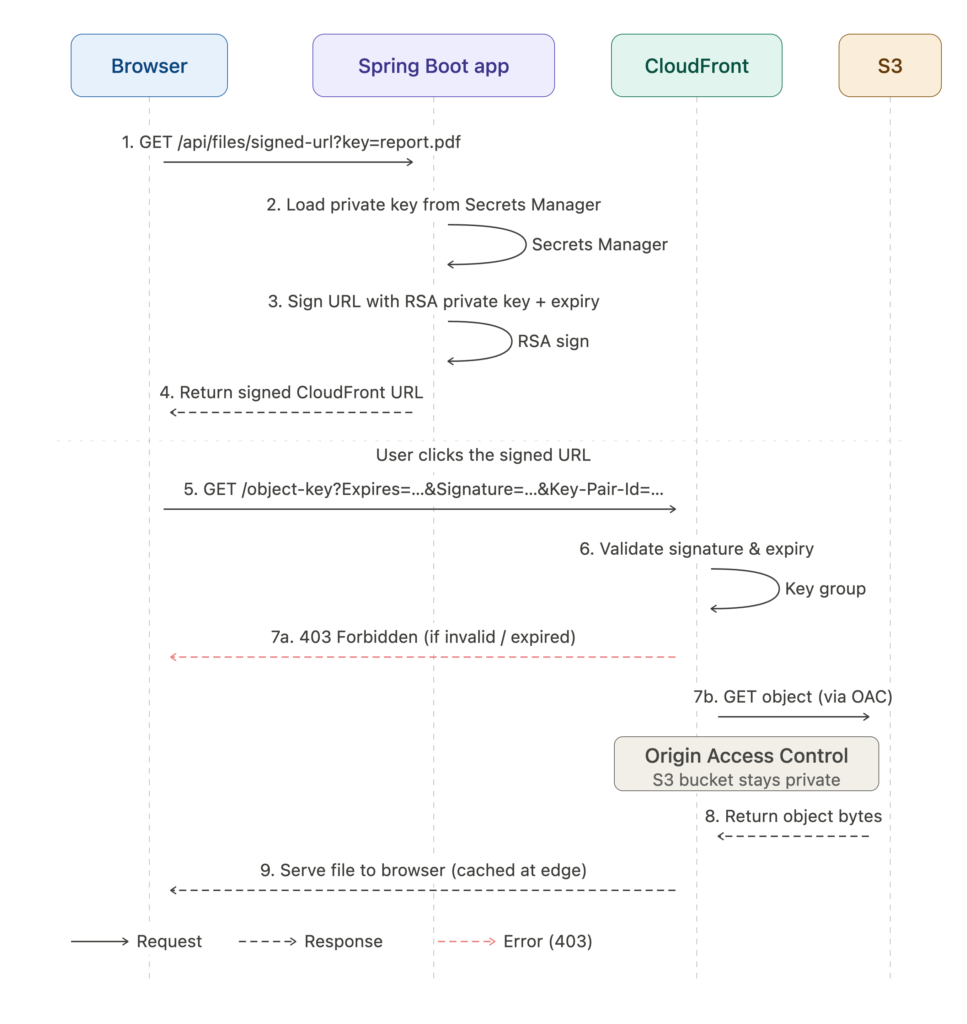
Here’s the full flow in action. Given an S3 object at key uploads/documents/Q3-report.pdf:
Request:
GET /api/files/signed-url?key=uploads/documents/Q3-report.pdfResponse:
{
  "url": "https://d1abc2defg3hij.cloudfront.net/uploads/documents/Q3-report.pdf?Expires=1719316800&Signature=ABCD...XYZ&Key-Pair-Id=K2JCJMDEHXQW5F"
}
The user clicks this URL. CloudFront validates the signature, checks the expiry, then fetches from S3 via the OAC — all transparently. The S3 bucket URL is never exposed.
Common Errors & Fixes
Error 1: 403 Forbidden from CloudFront
Cause: The S3 bucket policy doesn’t grant the OAC permission, or the behavior doesn’t have Restrict viewer access enabled.
Fix: Re-copy the bucket policy from CloudFront’s banner and paste it into your S3 bucket policy. Double-check the distribution ARN in the Condition block.
Error 2: InvalidSignature or MissingKey
Cause: The Key-Pair-Id in the signed URL doesn’t match any key in the trusted key group attached to the distribution behavior.
Fix: Verify the keyPairId in your application.yml matches the Public Key ID (not the key group ID) in CloudFront → Key management → Public keys.
Error 3: java.security.spec.InvalidKeySpecException
Cause: The private key is in PKCS#1 format (starts with -----BEGIN RSA PRIVATE KEY-----) but the Java PKCS8EncodedKeySpec expects PKCS#8.
Fix: Convert the key before storing it:
openssl pkcs8 -topk8 -nocrypt -in cloudfront-private-key.pem -out cloudfront-private-key-pkcs8.pemStore and use the PKCS#8 version.
Error 4: URL Works Once Then Expires Too Fast
Cause: Server clock skew — your EC2 or container clock is drifting, making the expiry appear in the past.
Fix: Sync your system clock with NTP. On Amazon Linux:
sudo yum install -y chrony
sudo systemctl enable chronyd --now
Best Practices
- Cache the private key in memory. Loading from Secrets Manager on every request adds latency. Load once at startup or use a
@PostConstructcache. - Keep expiry times short 15 to 60 minutes is usually sufficient. Shorter windows reduce the window of abuse if a URL leaks.
- Use custom policies for sensitive files when you need IP restriction or access windows that don’t start immediately.
- Never block CloudFront’s IP ranges in your S3 bucket policy the OAC uses AWS service principals, not IP addresses.
- Use CloudFront invalidations sparingly they cost money after the first 1,000 per month. Design your key paths to avoid needing mass invalidations.
- Log CloudFront access enable CloudFront access logs to an S3 bucket for auditing who accessed what and when.
Conclusion
You’ve replaced S3 presigned URLs with CloudFront signed URLs in Spring Boot. Your S3 bucket is now fully private, your files are served through a CDN with global caching, and your signing key is safely stored in Secrets Manager.
For further reading, see the official AWS CloudFront signed URLs documentation and the AWS SDK for Java v2 CloudFront module.