CoderSathi
  • Tutorial
    • Java Tutorial
    • Swing Tutorial
    • JDBC Tutorial
    • Java String Tutorial
    • Servlet and JSP Tutorial
  • Mongo DB
  • AWS
  • DevOps
  • Linux
  • Git
Home > How to > Connect To MongoDB using Compass Via SSH Tunnel

Connect To MongoDB using Compass Via SSH Tunnel

Learn the concepts, implementation details, and practical steps with a clean developer-focused walkthrough.

Yuba Raj Kalathoki
By Yuba Raj Kalathoki
Last updated: July 1, 2026 ยท 2 min read ยท 0 Comments
Share: in X

Overview

Let’s say, you have a MongoDB database server in your private subnet, which means you can’t connect or access it publicly. In this case, you may need to connect to MongoDB database with the SSH tunnel using a Compass.

In this post, we will use MongoDB Compass a Graphical User Interface (GUI) for querying, aggregating, and analyzing our data in MongoDB.

Let’s connect MongoDB database with SSH tunnel using Compass

  1. Download MongoDB compass from this link.
  2. Install MongoDB compass and open it.
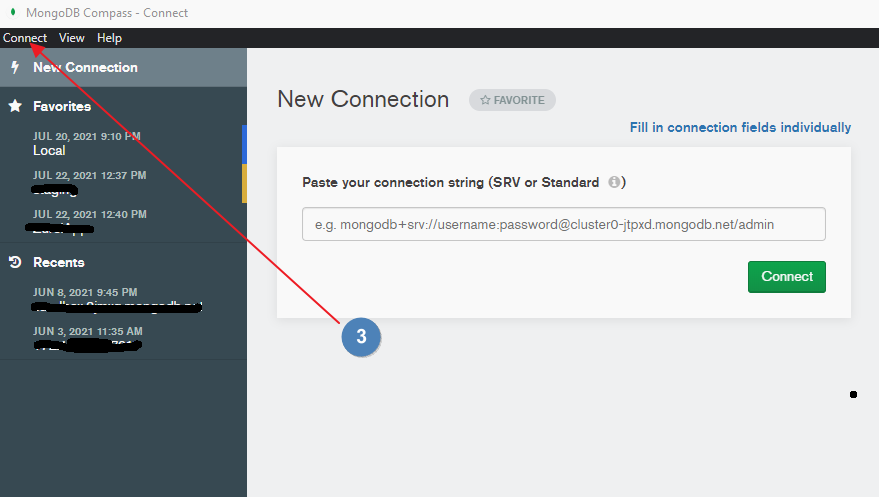
  3. Go to Connect menu from top left and click on Connect to
3 1
  1. Click on Fill in connection fields individually
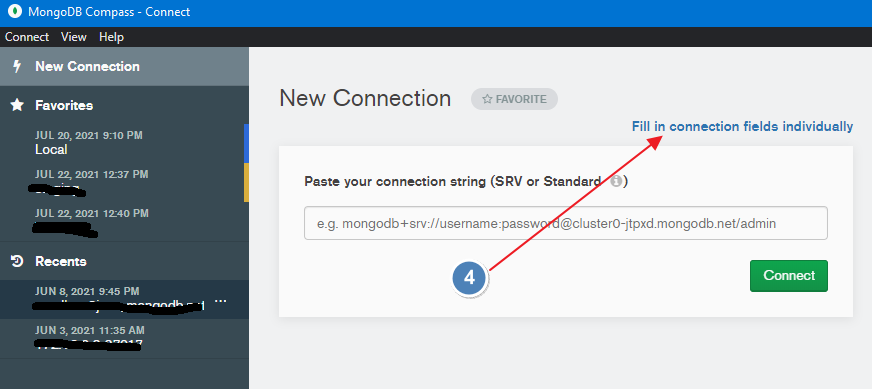
Connect MongoDB
  1. Hostname:
    • Hostname: The hostname of your MongoDB server. It can be IP of DNS
    • Port: If you haven’t changed you can leave it as default or you can add new one if it is different.
    • Authentication: Choose your authentication type. If it is username and password then select Username / Password
    • Username: Your MongoDB username.
    • Password: Your password
    • Authentication Database: The authentication database for you user
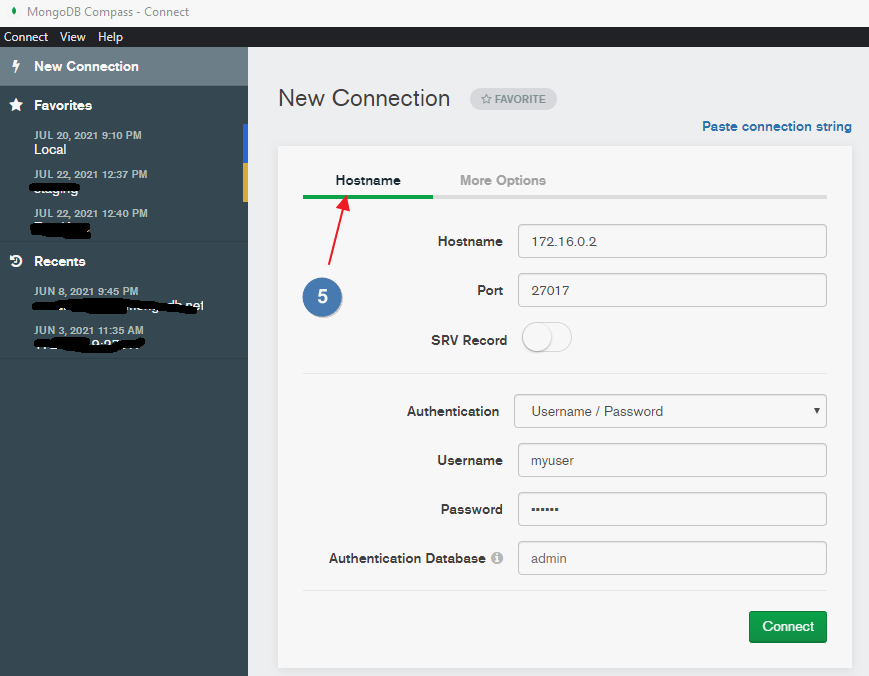
Connect MongoDB database
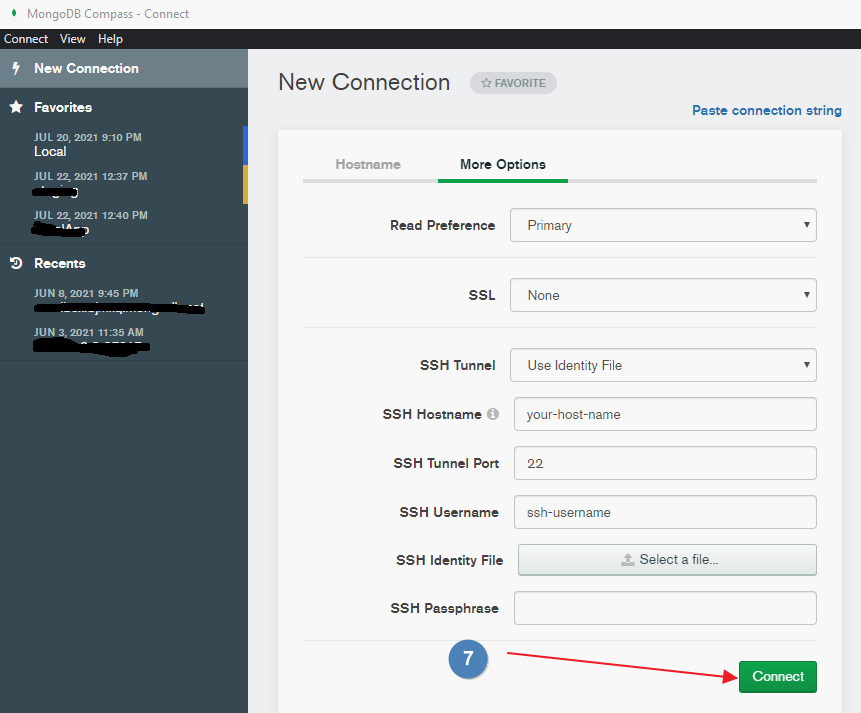
  1. Click More Options
    • SSH Tunnel and choose Use Identity File
    • SSH Hostname: The public IP. It is kind of Bastion Host IP
    • SSH Tunnel Port: 22
    • SSH Username: SSH Username (If you are using Ubuntu instance of AWS EC2 then it is likely to Ubuntu)
    • SSH Identity File: Click Select a file… and and choose your SSH Key file.
    • SSH Passphrase: Enter your pass if any otherwise you can leave it blank
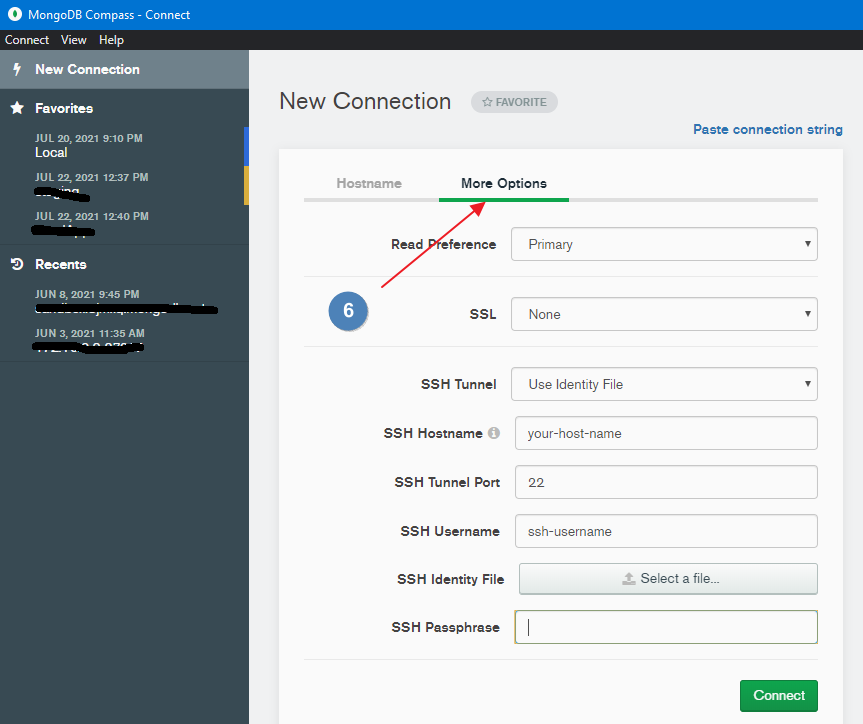
Connect MongoDB database with SSH
  1. Click the Connect button.
Connect MongoDB database with SSH tunnel using Compass

Now it should be connected successfully.

Congratulations! You are now successfully connected to your MongoDB database with an SSH tunnel.

Related Posts:

  • How to Connect Java Application to a Remote Database…
  • How to solve: "The availability zones of the…
  • How to Fix SSH Agent Forwarding on macOS: The…
  • How to Connect MongoDB Atlas Using Compass -…
  • How to Install Ollama on Windows, Linux, and macOS:…
  • Setting Up an EC2 Instance with Amazon CloudFront…
Tags:devopsmongodb
Was this article helpful?
โ† Previous ArticleAccess Organization account in AWS
Next Article โ†’Create an IAM user in AWS

Leave a Comment Cancel reply

You must be logged in to post a comment.

Recent Posts

  • How to implement Passwordless Authentication in Spring Boot: A Step-by-Step Guide
  • How to Use AWS CloudFront Signed URLs in Spring Boot?
  • How to Fix SSH Agent Forwarding on macOS: The Ultimate Guide for Developers
  • How to Read AWS Secrets Manager in Spring Boot (Step-by-Step)
  • How to Fix “Public Key Retrieval is not allowed” MySQL JDBC Error
CoderSathi

Your go-to resource for Java, Spring Boot, Microservices, AWS, and modern development tutorials.

Linkedin

Quick Links

  • About
  • Contact

Popular Topics

  • Java
  • Spring Boot
  • AWS
  • DevOps
  • MongoDB
  • Linux
  • Git
  • How to
ยฉ 2026 CoderSathi. All rights reserved. Privacy Policy ยท Sitemap