CoderSathi
  • Tutorial
    • Java Tutorial
    • Swing Tutorial
    • JDBC Tutorial
    • Java String Tutorial
    • Servlet and JSP Tutorial
  • Mongo DB
  • AWS
  • DevOps
  • Linux
  • Git
Home > Java > Step-by-Step Guide to Set Up Eclipse with Tomcat Server for Java Web Development

Java Tutorial

  • Introduction
    • What is Java
    • History Of Java
    • Install Java
    • What is JVM
    • JDK vs JRE vs JVM
    • Java Bytecode
    • OOP vs POP
    • Compile and Run Java
  • Tokens, Expressions and Control Structures
    • Primitive data types
    • Integers
    • Floating Points
    • Characters
    • Booleans
    • User Defined Data Type
    • Declarations
    • Constants
    • Identifiers
    • Literals
    • Type Conversion and Casting
    • Variables
    • Default Variable Initialization
    • Command Line Arguments
    • Arrays of Primitive Types
    • Comment Syntax
    • Garbage Collection
    • Expressions
    • Operators
    • Arithmetic Operator
    • Bitwise and Shift Operator
    • Comparison or Relational Operators
    • Logical Operators
    • Assignment Operators
    • Ternary Operator
    • Increment and Decrement Operator
    • Control Statements
  • OOP Concepts
    • Class and Object
    • Create Class Instance
    • Method
    • Abstraction
    • Encapsulation
    • this keyword
    • Constructor
    • Pass by Value
    • Access Modifier/Control
    • Polymorphism
    • Method Overloading vs Method Overriding
    • Recursion
    • Nested and Inner Class
  • Inheritance and Packaging
    • Inheritance
    • extends Keyword
    • super Keyword
    • Object Class
    • Abstract class
    • Final Class
    • Java Package
    • Interface
  • Handling Error/ Exceptions
    • What is Exception
    • Exception Handling Keywords
    • Common Java Errors
    • User Defined Exception
    • Throwing and re-throwing Exception
    • finally Block
  • Strings
    • Java String Tutorial
  • Threads
    • Introduction
    • Create Thread
    • Thread Lifecycle
    • Thread Priority
    • Thread Synchronization
    • Inner Thread Communication
    • Thread Deadlock
  • IO and Streams
    • java.io Package
    • Files and Directories
    • Byte Stream
    • Character Stream
    • Console Input and Output
    • Serializable and Deserializable
  • Core Packages
    • java.lang Package
    • Math
    • Wrapper Classes
    • java.lang.Number
    • Double
    • Float
    • Integers
    • java.lang.Byte
    • java.lang.Short
    • java.lang.Long
    • java.lang.Character
    • java.lang.Boolean
    • java.util package
    • Vector Class
    • Stack Class
    • Dictionary Class
    • Hashtable
    • Enumeration or Enum
    • Generate Random Number
  • Holding Collection of Data
    • Arrays
    • Map
    • List
    • Set
    • Collection Interface
    • Collections Class
    • ArrayList
    • HashSet
    • TreeSet
    • Comparator
  • Java Bean
    • What is Java Bean
    • Advantages and Disadvantages of Java Bean
    • Java Beans API
    • Introspection
    • Java Bean Properties
    • Bound and Constrained Properties
    • BeanInfo Interface
    • Customizers
    • Java Beans Persistence
    • BeanDescriptor
  • Home

Step-by-Step Guide to Set Up Eclipse with Tomcat Server for Java Web Development

Learn the concepts, implementation details, and practical steps with a clean developer-focused walkthrough.

Yuba Raj Kalathoki
By Yuba Raj Kalathoki
Last updated: July 1, 2026 ยท 3 min read ยท 0 Comments
Share: in X

Setting up Eclipse with Tomcat Server for Java Web Development is straightforward. In this blog post, we will learn how to set up eclipse with tomcat server for Java server side programming.

Table of Contents

Step 1: Download and Install Eclipse
Step 2: Download and Install Apache Tomcat
Step 3: Configure Tomcat in Eclipse
Step 4: Verify Tomcat Installation
Step 5: Create a Dynamic Web Project
Step 6: Run Project in Eclipse
Step 7: Troubleshooting Tips

Step 1: Download and Install Eclipse

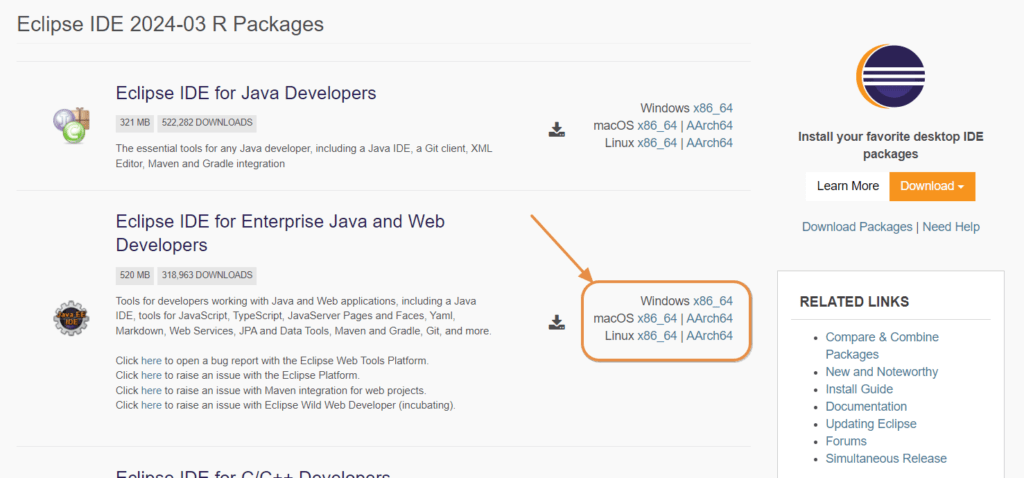
  1. Visit the Eclipse Download Page: Go to the official Eclipse Downloads page.
  2. Download Eclipse IDE for Java EE Developers: Choose the version that matches your operating system (Windows, macOS, or Linux).
download eclipse
  1. Install Eclipse:
    • Windows: Run the .exe installer and follow the prompts.
    • macOS: Open the downloaded .dmg file and drag Eclipse to the Applications folder.
    • Linux: Extract the downloaded .tar.gz file and run the eclipse executable.

Step 2: Download and Install Apache Tomcat

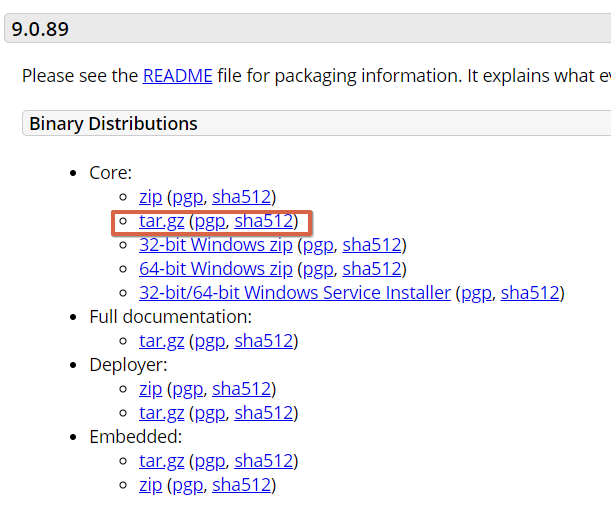
  1. Visit the Tomcat Download Page: Go to the official Tomcat Downloads page.
  2. Download Tomcat: Choose the Core binary distribution (e.g., apache-tomcat-9.0.xx.zip).
download tomcat
  1. Extract Tomcat:
    • Windows: Right-click the downloaded ZIP file and select “Extract All”.
    • macOS/Linux: Use a terminal to run unzip apache-tomcat-9.0.xx.zip.
    • And rename root folder to tomcat9 (Optional)
  2. Save in your prefered location. For windows save it inside C drive. Example: C:/tomcat9

More detail to install tomcat.

Step 3: Configure Tomcat in Eclipse

  1. Open Eclipse: Launch Eclipse and select a workspace directory. I would prefer to save on c:/workspace. It is up to you where you want to set your workspace.
  2. Configure Tomcat Server in Eclipse:
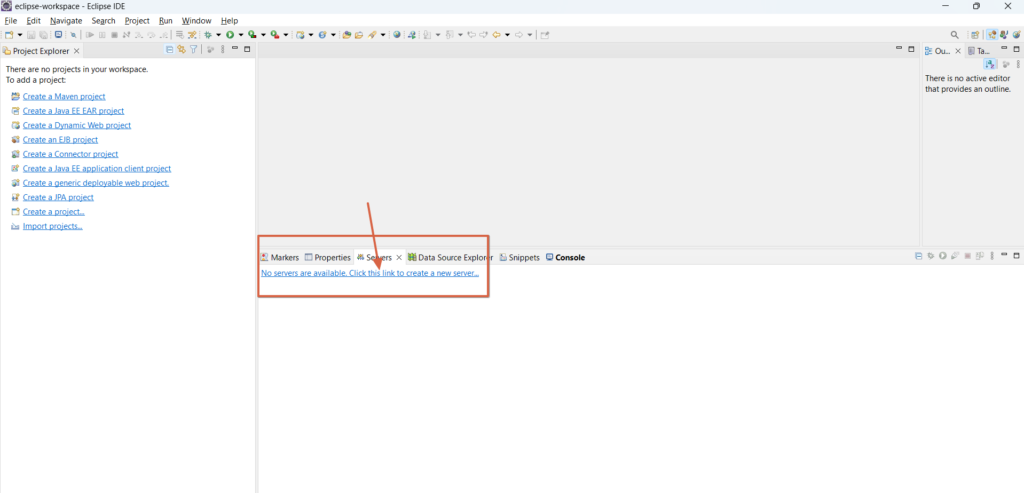
    • Go to Window > Show View > Servers.
Setup server in eclipse
  1. Create a new server:
    • Click on the link that says: No server are available. Click this link to create a new server.
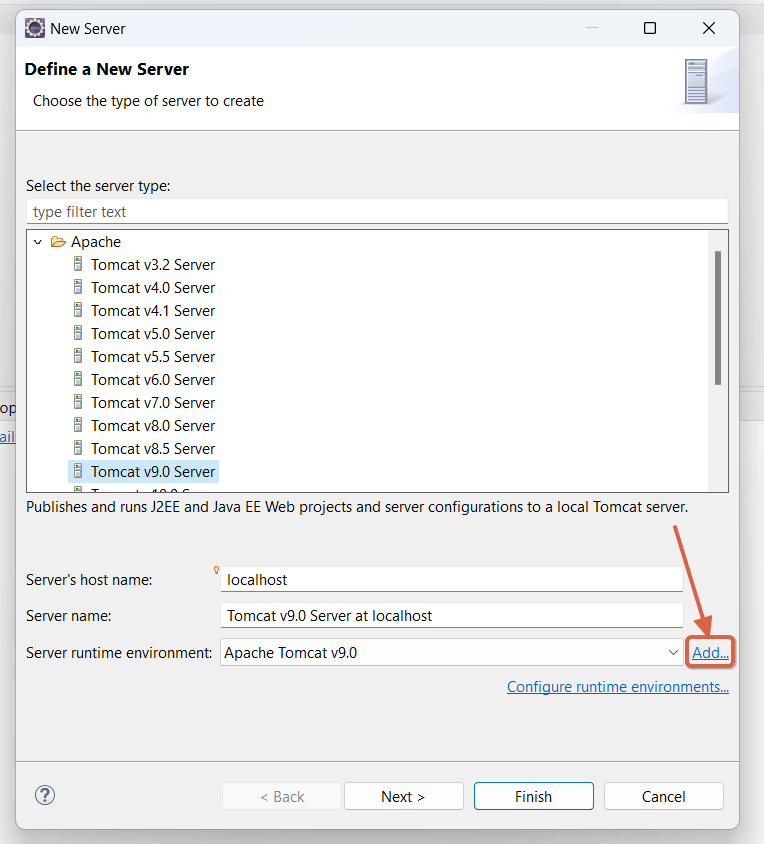
  2. Choose Apache > Tomcat v9.0 Server (or the version you downloaded) and click Next.
Add tomcat server in eclipse
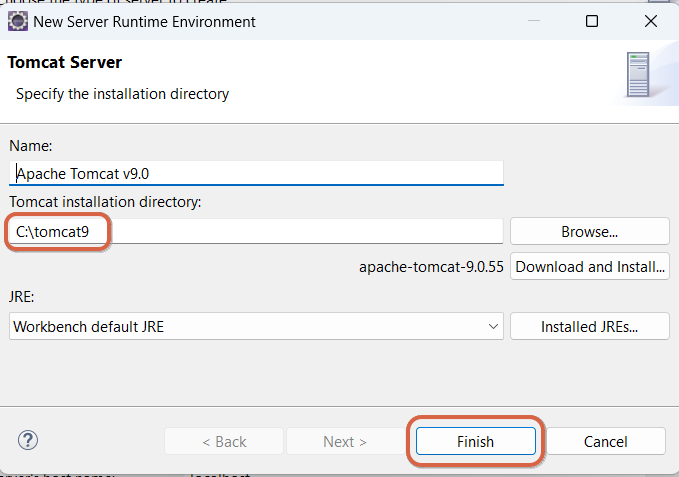
  1. Set the Tomcat installation directory to the folder where you extracted and saved Tomcat.
Setup tomcat server finish
  1. Click Finish.

Step 4: Verify Tomcat Installation

  1. Right click on the server and click start.
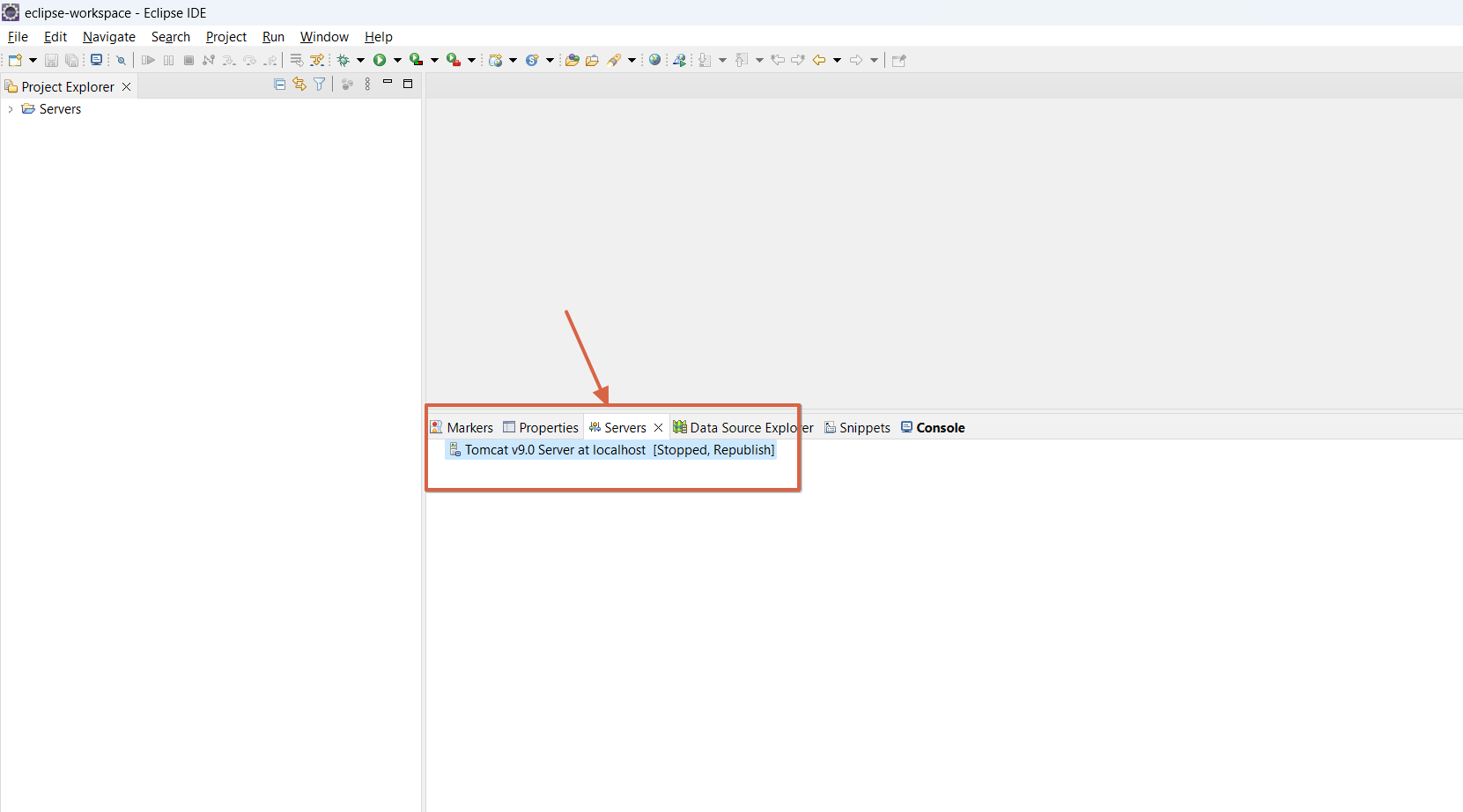
Start tomcat server in eclipse 1
  1. Go to your browser and verify your installation by typing: localhost:8080
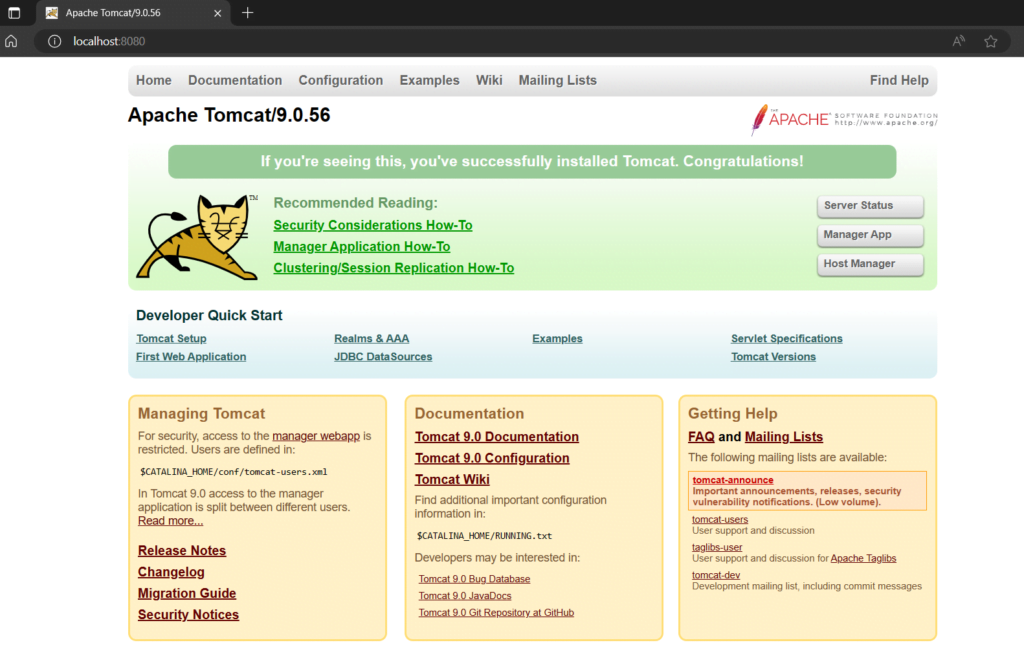
Install Tomcat Success welcome page 1

Step 5: Create a Dynamic Web Project

  1. Create New Project:
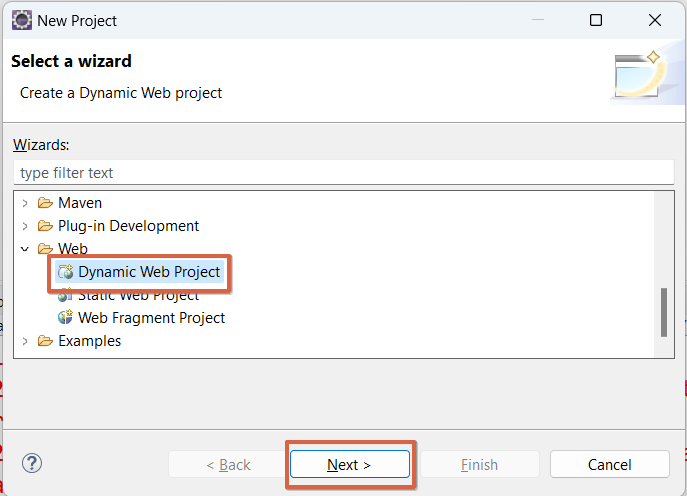
    • Go to File > New > Project > Web.
    • Select Web > Dynamic Web Project and click Next.
Create dynamic web project in eclipse
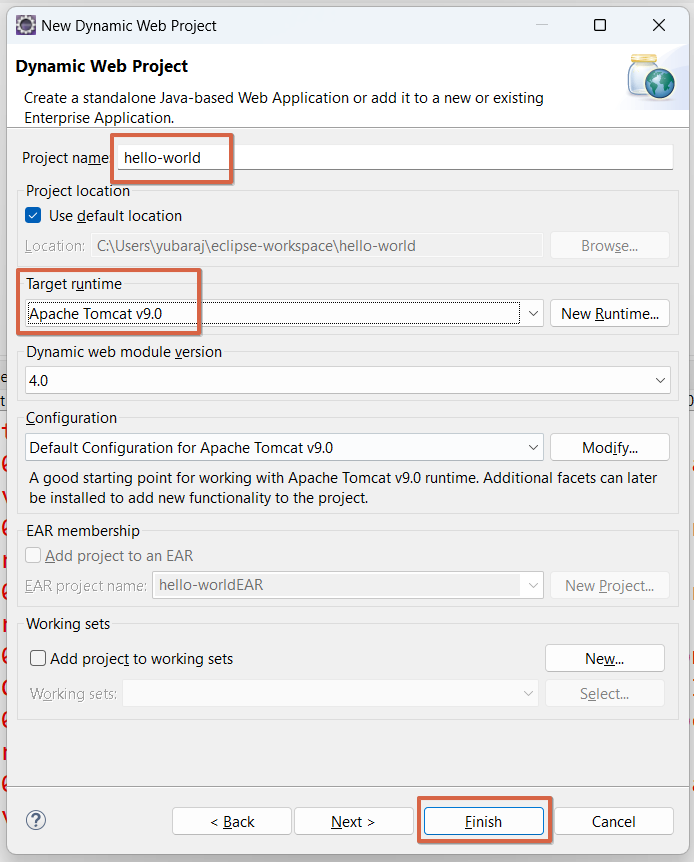
  1. Configure Project:
    • Enter the project name (e.g., hello-world).
    • Set the Target runtime to Apache Tomcat v9.0.
    • Click Finish.
Create dynamic project in eclipse

Step 6: Run Project in Eclipse

To run project in eclipse, right click on the project and click on Run As > Run on Server and select Server then click Finish.

Step 7: Troubleshooting Tips

  • Port Issues: If Tomcat does not start, it might be due to port conflicts. Edit server.xml in the conf directory of your Tomcat installation to change the port from 8080 to another port.
  • Eclipse Console Errors: Check the Eclipse console for any deployment errors or exceptions.
  • Tomcat Logs: Check the Tomcat logs located in the logs directory for more detailed error messages.

By following these steps, you should have a fully functional setup of Eclipse with Tomcat for Java web development.

Related Posts:

  • Install and Set Up Java Development Environment
  • MySQL Commands for Developers
  • Top 10 Common Java Errors
  • Java Regex Tutorial: Pattern, Matcher, and Practical…
  • Setting Up Your Environment for JDBC
  • How to Run JAR File: Step-by-Step Guide
Tags:eclipsejavaserver-side-prograingtomcat
Was this article helpful?
โ† Previous ArticleHow to Pass Data from JSP to Servlet
Next Article โ†’Setting Up an EC2 Instance with Amazon CloudFront Distribution, SSL, and Route 53 Custom Domain

Leave a Comment Cancel reply

You must be logged in to post a comment.

Recent Posts

  • How to implement Passwordless Authentication in Spring Boot: A Step-by-Step Guide
  • How to Use AWS CloudFront Signed URLs in Spring Boot?
  • How to Fix SSH Agent Forwarding on macOS: The Ultimate Guide for Developers
  • How to Read AWS Secrets Manager in Spring Boot (Step-by-Step)
  • How to Fix “Public Key Retrieval is not allowed” MySQL JDBC Error
CoderSathi

Your go-to resource for Java, Spring Boot, Microservices, AWS, and modern development tutorials.

Linkedin

Quick Links

  • About
  • Contact

Popular Topics

  • Java
  • Spring Boot
  • AWS
  • DevOps
  • MongoDB
  • Linux
  • Git
  • How to
ยฉ 2026 CoderSathi. All rights reserved. Privacy Policy ยท Sitemap