

JTextArea is a component of the Java Swing library that allows users to input or display multiple lines of text. It is similar to the JTextField component, but it can handle multiple lines of text rather than just a single line.
Following is a basic example of how to use JTextArea in Java Swing:
import javax.swing.JFrame;
import javax.swing.JTextArea;

public class JTextAreaDemo extends JFrame {

    public JTextAreaDemo() {
        JTextArea textArea = new JTextArea();
        add(textArea);

        setTitle("JTextArea Demo");
        setSize(400, 400);
        setDefaultCloseOperation(JFrame.EXIT_ON_CLOSE);
        setVisible(true);
    }

    public static void main(String[] args) {
        new JTextAreaDemo();
    }

}
Output:
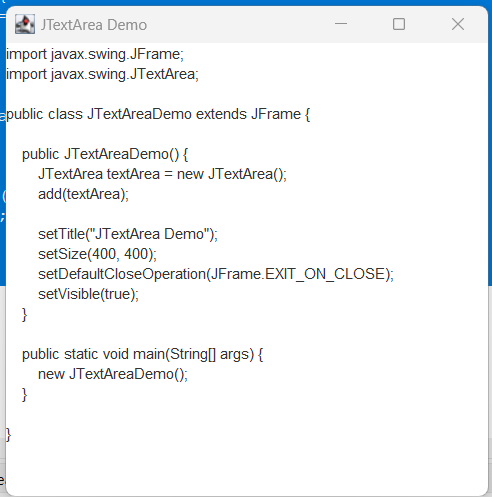
In this example, a new JFrame is created with a JTextArea added to it. The JTextArea is then displayed on the frame with the setVisible(true) method.
JTextArea can also be customized by setting properties such as font, text color, and background color using the setFont(), setForeground(), and setBackground() methods, respectively. Additionally, we can use methods like setLineWrap() and setWrapStyleWord() to control how the text is wrapped within the component.
Customizing JTextArea
Following is an example of how to customize a JTextArea:
JTextArea textArea = new JTextArea();
textArea.setFont(new Font("Arial", Font.PLAIN, 14));
textArea.setForeground(Color.BLUE);
textArea.setBackground(Color.YELLOW);
textArea.setLineWrap(true);
textArea.setWrapStyleWord(true);
Let’s see how it looks after adding the customizable code:
import java.awt.Color;
import java.awt.Font;

import javax.swing.JFrame;
import javax.swing.JTextArea;

public class JTextAreaDemo extends JFrame {

    public JTextAreaDemo() {
        JTextArea textArea = new JTextArea();

        //Customization added to JTextArea
        textArea.setFont(new Font("Arial", Font.PLAIN, 14));
        textArea.setForeground(Color.BLUE);
        textArea.setBackground(Color.YELLOW);
        textArea.setLineWrap(true);
        textArea.setWrapStyleWord(true);


        add(textArea);

        setTitle("JTextArea Demo");
        setSize(400, 400);
        setDefaultCloseOperation(JFrame.EXIT_ON_CLOSE);
        setVisible(true);
    }

    public static void main(String[] args) {
        new JTextAreaDemo();
    }

}
Output:
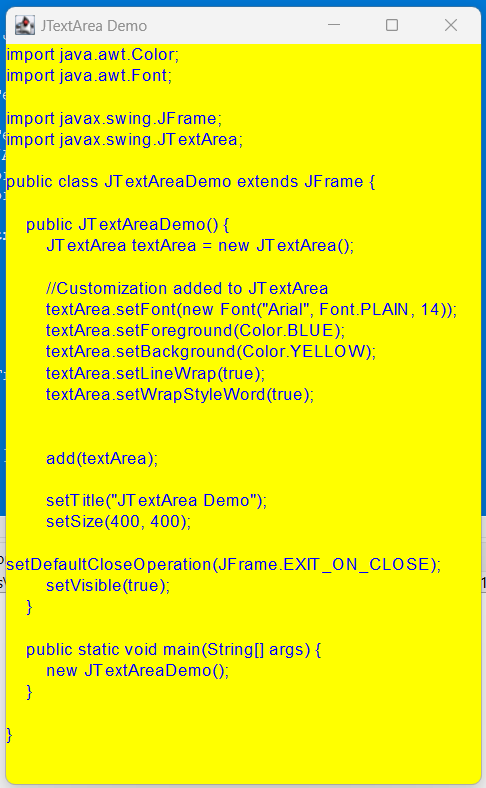
In this example, the font is set to Arial with a plain style and a size of 14, the text color is set to blue, the background color is set to yellow, and line wrap and word wrap are enabled.
We can also make JTextArea scrollable. To add scroll ability to a JTextArea in Java Swing, we can wrap it inside a JScrollPane. This allows the user to scroll the text area if the content inside it exceeds the visible area.
Following is an example of how to add a JScrollPane to a JTextArea:
import java.awt.Color;
import java.awt.Font;

import javax.swing.JFrame;
import javax.swing.JScrollPane;
import javax.swing.JTextArea;

public class JTextAreaDemo extends JFrame {

	public JTextAreaDemo() {
		JTextArea textArea = new JTextArea();
		// Adding scrollbar to jtext area
		JScrollPane scrollPane = new JScrollPane(textArea);
		add(scrollPane);

		// Customization added to JTextArea
		textArea.setFont(new Font("Arial", Font.PLAIN, 14));
		textArea.setForeground(Color.BLUE);
		textArea.setBackground(Color.YELLOW);
		textArea.setLineWrap(true);
		textArea.setWrapStyleWord(true);

		// Adding scrollPane to frame instead of jtextarea
		add(scrollPane);

		setTitle("JTextArea Demo");
		setSize(400, 400);
		setDefaultCloseOperation(JFrame.EXIT_ON_CLOSE);
		setVisible(true);
	}

	public static void main(String[] args) {
		new JTextAreaDemo();
	}

}
In the example above, a new JScrollPane is created with the JTextArea inside it. The JScrollPane is then added to the JFrame instead of the JTextArea directly. When the content inside the JTextArea exceeds the visible area, a scrollbar will appear to allow the user to scroll through the text.
Output:
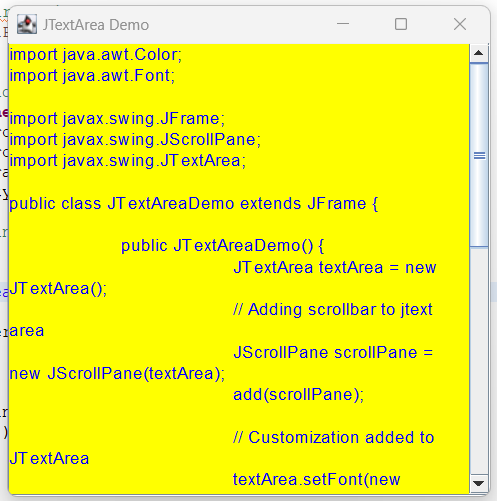
In the above output image, the content in JTextArea was more than the display window. Hence, there is a verticle scroll bar in the JTextArea. When the user wants to see all the content then s/he can scroll down to see the remaining content.
We can also customize the behavior of the scrollbar by using methods like setVerticalScrollBarPolicy() and setHorizontalScrollBarPolicy(). For example, to disable the vertical scrollbar, we can use:
scrollPane.setVerticalScrollBarPolicy(JScrollPane.VERTICAL_SCROLLBAR_NEVER);
This will remove the vertical scrollbar from the JTextArea, even if the content inside it exceeds the visible area. Similarly, we can use setHorizontalScrollBarPolicy() to control the horizontal scrollbar.